Read the study. Speak your findings. Review your report. DN Viewer brings radiology speech-to-text and AI-assisted drafting into your desktop DICOM workflow on Mac and Windows.
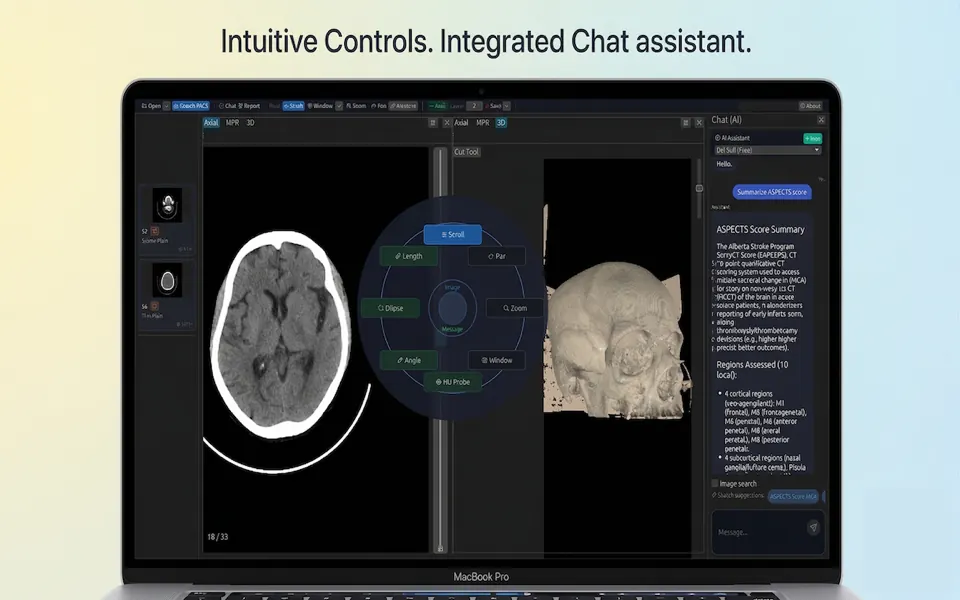
DICOM review and AI assistance in the DN Viewer desktop workspace.
A radiology voice tool where you already read images.
Radiology dictation software converts spoken observations into text. The next steps matter just as much: organizing findings, editing the draft, checking the impression, and keeping the report connected to the study you are reading.
DN Viewer combines a desktop DICOM reader with an integrated reporting pane. Open a local study or retrieve one from your configured PACS, inspect the images, and open Report to capture your findings. You can dictate, type, or paste notes, then use AI assistance to prepare report changes for review.
For radiologists looking for radiology voice recognition software or a DICOM viewer with AI reporting, this puts image review and report preparation in the same app. The assistant works from the text and instructions you supply; the radiologist interprets the study and approves the report.
Save reporting time. Communicate findings more clearly.
DN Viewer’s integrated voice and AI reporting tools can help reduce typing, repeated wording, and the effort of shaping a report draft. Keeping the report beside the DICOM study also makes it easier to return to the images while checking what you have written.
01 / Save time
Spend less effort on repetitive drafting
Dictate from your workstation or phone, then use Generate to prepare edits from the captured findings. Templates and reviewable suggestions can reduce repeated typing and reformatting, leaving more time for interpretation and report review. The time saved depends on the study and the corrections needed.
02 / Improve language
Turn short notes into clearer sentences
AI-assisted drafting can help refine grammar, expand brief observations into readable prose, and make report wording more concise. Review the proposed language against the images and your intended meaning, especially for uncertainty, negations, measurements, and laterality.
03 / Build consistency
Use a familiar reporting structure
Report templates provide a starting structure for similar examinations. Assisted drafting can help follow your preferred terminology and section layout, while validation tools offer another opportunity to check the text. Confirm that the findings and impression agree and that study-specific details remain intact.
04 / Clinical focus
Make the impression useful to the referring clinician
Include the clinical indication with your findings so the draft can be organized around the question the study is meant to answer. Use impression generation to help summarize your interpretation, then review it for relevance and clarity. Every conclusion should remain supported by your findings and clinical judgment.
Desktop dictation, phone voice input, and report drafting.
01 / Desktop speech-to-text
Speak from your workstation
Open the Report pane and use the microphone control to record findings. The desktop dictation guide also documents the hold-Alt shortcut. Review the transcription in the Speech to Text box before generating report edits.
02 / Phone dictation
Pair a phone with your report
Use the QR control in the Speech to Text card to open a mobile session. Scan the code on your phone and speak into its microphone; transcribed text syncs to the desktop report pane. See the mobile dictation instructions for pairing and controls.
03 / AI-assisted drafting
Turn your notes into proposed edits
Use Generate to prepare report changes from dictated or typed findings. DN Viewer supports template selection, AI impression generation, and validation tools within the reporting workflow. Check the wording against the observations you intended to document.
04 / Review and apply
Choose the changes that belong
Inspect the proposed additions and removals. Accept or skip suggestions before applying approved changes to the report. AI validation is an extra review aid; your own check of findings, measurements, laterality, and impression remains essential.
How to dictate a radiology report in DN Viewer.
1
Open the study and sign in
Load the DICOM study you want to report. Sign in and open Report in the toolbar. Confirm that the report session belongs to the intended patient and study before adding findings.
2
Choose desktop or phone voice input
Start recording with the desktop microphone control, or pair your phone through the QR session. Dictate the observations and measurements you want included. Stop recording and check the captured text.
3
Generate and review report changes
Correct any transcription errors, add editing instructions where needed, and select Generate. Review the proposed changes individually, accept the ones you want, and skip or correct the rest.
4
Check the completed draft
Read the findings and impression together against your image interpretation. Check negated findings, units, measurements, anatomy, and laterality. Use the report tools to save or export the reviewed draft for your reporting workflow.
Reporting requires sign-in. AI generation and validation require an active subscription, and connected dictation and AI features need internet access. Read the reporting setup guide →
Radiology dictation for Mac and Windows.
DN Viewer is a native desktop app for both platforms. Choose the version for your workstation, then use the integrated report pane while reading DICOM studies. You can review image series, use MPR and 3D views, and return to your report within the same desktop workspace.
DN Viewer for Mac
Get the macOS app through the Mac App Store. Follow the reporting guide to set up voice input and AI drafting.
What to check in AI dictation software for radiologists.
Evaluate a radiology speech recognition tool with de-identified examples from your own reporting style. Check the complete workflow, from voice capture to a reviewed draft, alongside your workstation and institutional requirements.
Evaluate the reporting workflow
What to check
In DN Viewer
Study context
Keep the report pane alongside DICOM image review, and verify the selected report session.
Voice capture
Use desktop speech-to-text or phone dictation through a QR session.
Corrections
Check and edit captured words in the Speech to Text box before generating changes.
AI edit control
Review additions and removals, then accept or skip individual suggestions.
Access and connectivity
Confirm sign-in, subscription access, and connectivity for the reporting services you need.
Use measurements, anatomical terms, and negative findings in your evaluation. Check how easily you can correct text and review the final report, as well as how well voice input captures your words.
Radiology voice dictation: common questions.
Does DN Viewer include radiology dictation software?
Yes. DN Viewer includes a report pane with speech-to-text input and AI-assisted drafting alongside its DICOM viewing tools. You can dictate or type findings, generate proposed report changes, and review suggestions before applying them.
Can I use DN Viewer for radiology dictation on Mac and Windows?
DN Viewer is available as a desktop app for macOS and Windows. Use the platform download pages to choose the Mac App Store, Microsoft Store, or direct Windows installer, then sign in to access the reporting workflow.
How do I start desktop voice dictation?
Open the Report pane and use the microphone control to start and stop recording. The app guide also documents holding Alt to record and releasing it to stop. Review the captured words in the Speech to Text box before generating report changes.
Can I dictate from my phone into DN Viewer?
Yes. Open the QR control in the Speech to Text card, scan the session QR code with your phone, and follow the microphone prompts. Transcribed text syncs to the desktop report pane. The app guide explains pairing and session controls.
Does AI generation apply changes automatically?
Generate prepares proposed report changes for review. You can accept or skip individual suggestions before applying the changes you approve. Review the completed findings and impression before using the report.
Do AI reporting features need a subscription and internet access?
Reporting requires sign-in, and AI generation and validation require an active subscription. Connected speech-to-text and AI services need internet access. Opening local DICOM files is a separate workflow from using connected reporting services.
Is radiology speech recognition the same as AI report drafting?
Speech recognition converts spoken findings into text. AI drafting uses the dictated or typed text and your instructions to propose structured report edits. DN Viewer lets you review the captured text and the proposed edits as separate steps.
Read the images. Dictate the findings. Review the draft.
Explore DN Viewer’s DICOM tools and integrated AI reporting on your own workstation.