
Open Manage Servers
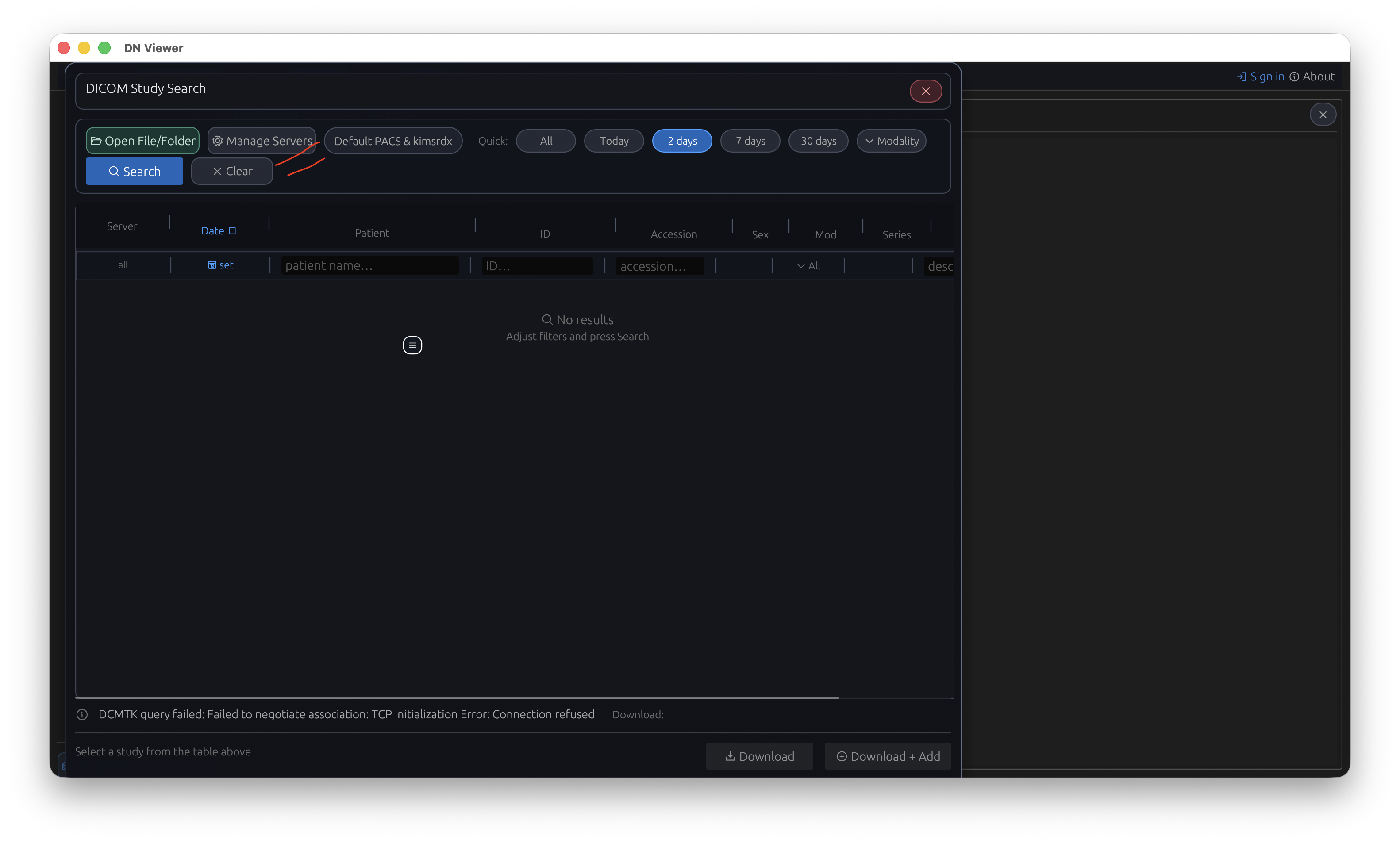
In DN Viewer, open DICOM Study Search and select Manage Servers.
Move your existing PACS connection into DN Viewer without changing the PACS server itself. This guide maps the familiar RadiAnt connection values to the matching DN Viewer fields.
You are not moving patient studies or changing your PACS server. You are entering the same connection details in DN Viewer. Keep your existing configuration available as a reference until you have written the values down.
Open the PACS search and server settings in RadiAnt, then record the following values for the PACS server you normally use. Type the required values exactly; AE titles are case-sensitive in many PACS environments.
| # | Value in RadiAnt | Where it goes in DN Viewer | What to do |
|---|---|---|---|
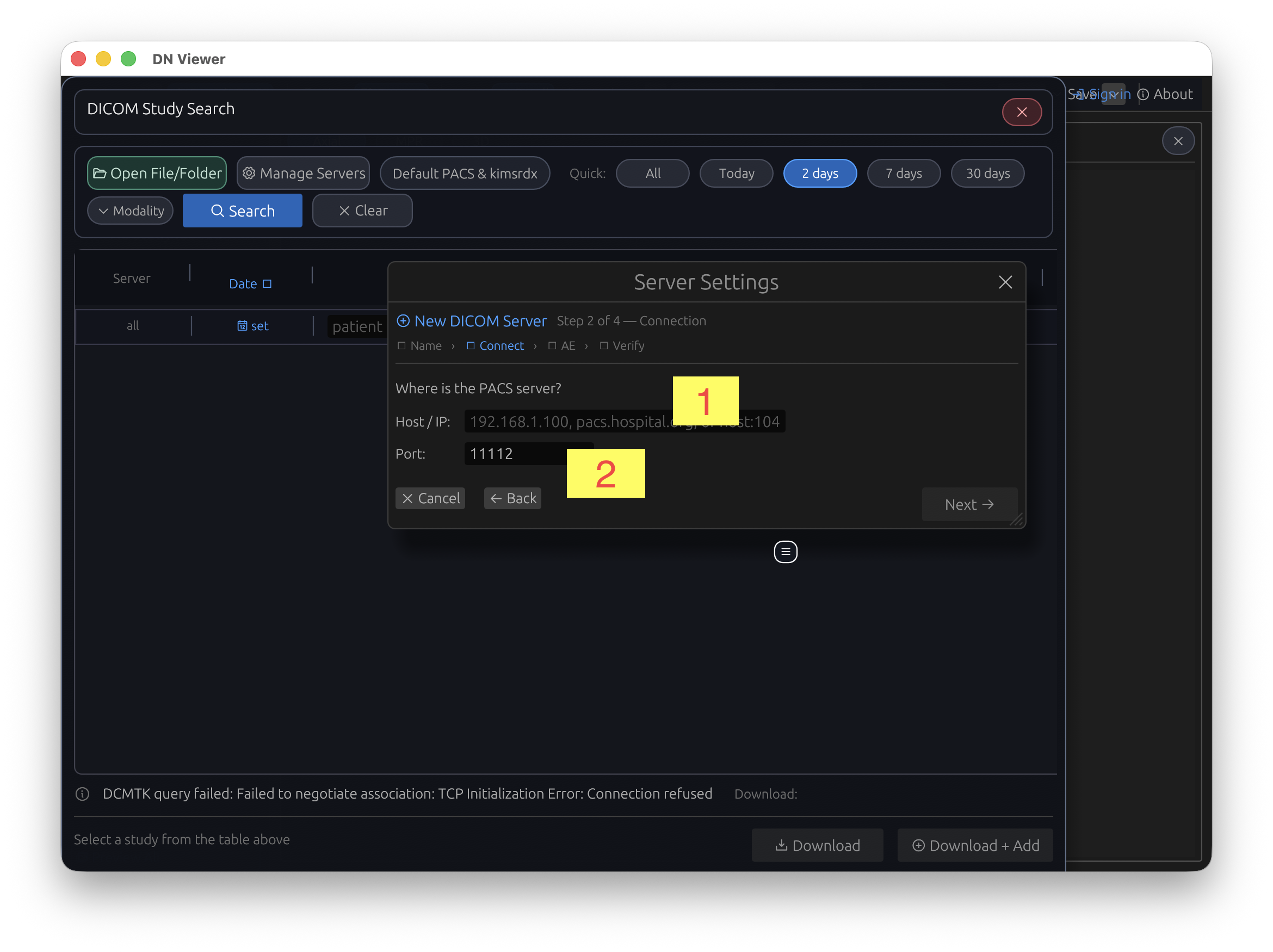
| 1 | IP address | Host / IP | Copy exactly. |
| 2 | Port | Port | Copy exactly. |
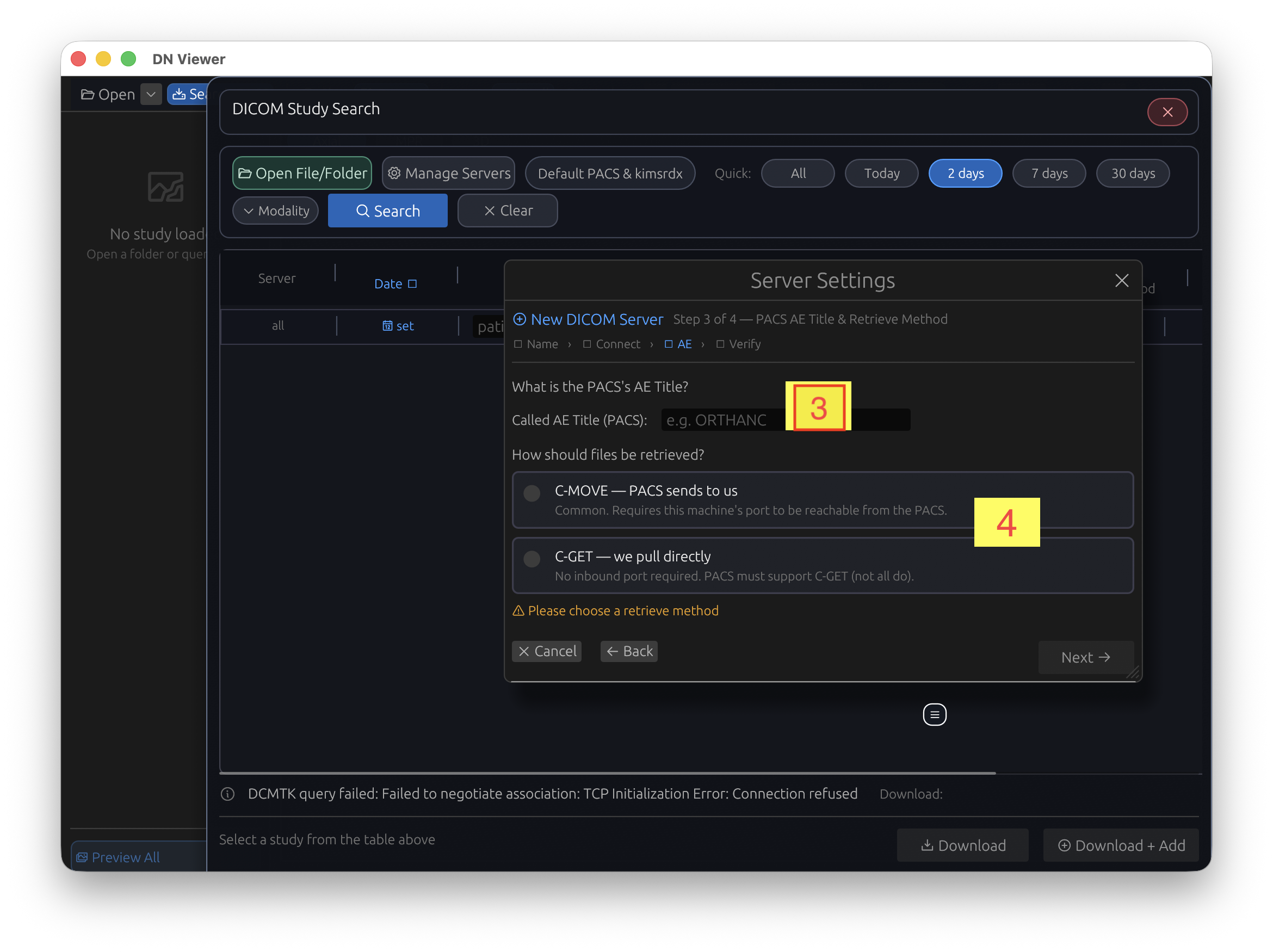
| 3 | AE title | Called AE Title (PACS) | Copy exactly. |
| 4 | Retrieve protocol | C-MOVE or C-GET | Choose the same method. |
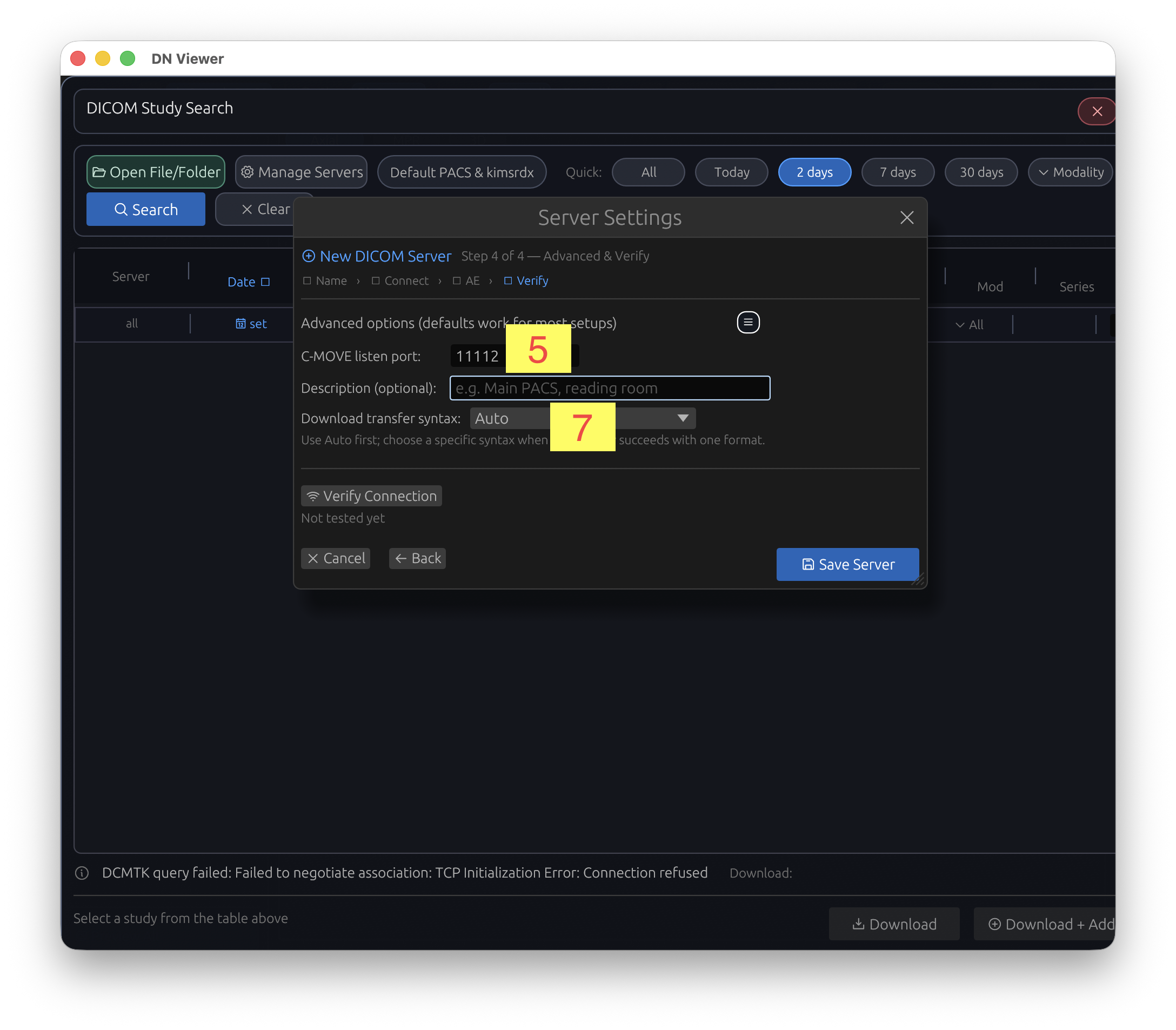
| 5 | Listener port | C-MOVE listen port | Copy when using C-MOVE. |
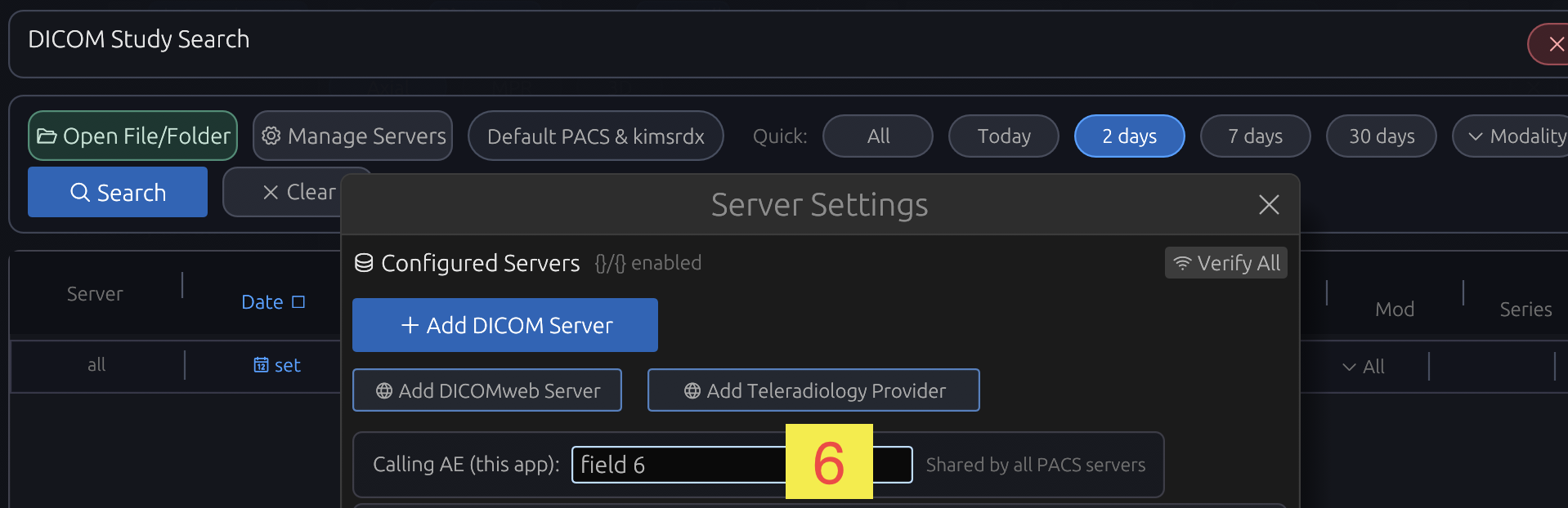
| 6 | My AE title | Calling AE (this app) | Copy exactly. |
| 7 | Preferred transfer syntax | Download transfer syntax | Start with Auto; use the matching format only when needed. |
In DN Viewer, open DICOM Study Search and select Manage Servers.
Enter your RadiAnt My AE title in Calling AE (this app). This is the identity DN Viewer presents to the PACS.
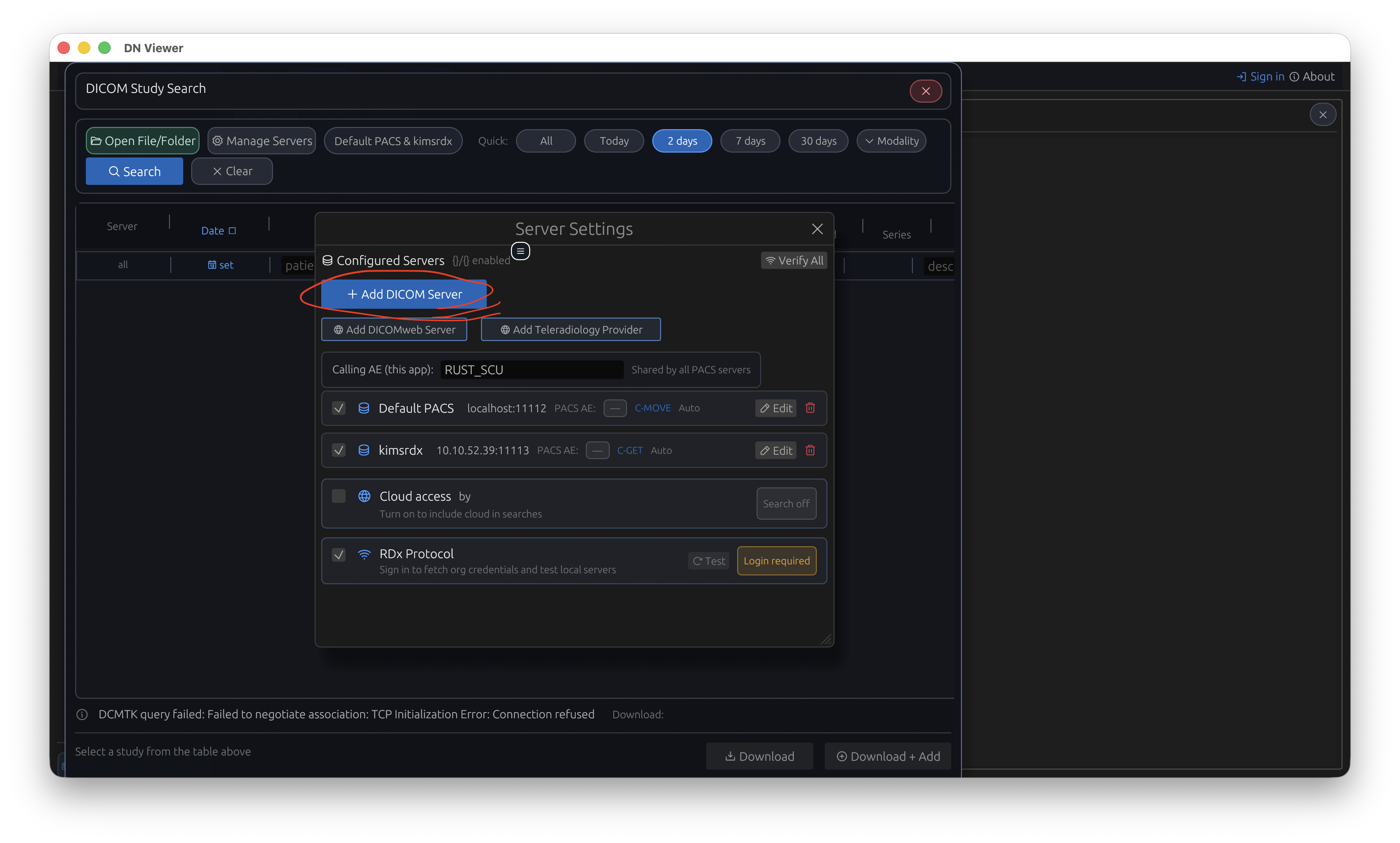
Select Add DICOM Server. The server name is only a label for you; use a clear name such as Main PACS or Hospital PACS.
Enter the RadiAnt IP address in Host / IP and its Port in Port, then select Next.
Enter the RadiAnt AE title in Called AE Title (PACS). Choose the same C-MOVE or C-GET method shown in RadiAnt.
For C-MOVE, enter the RadiAnt listener port. Keep transfer syntax on Auto unless your PACS requires a specific format. Quit RadiAnt completely, select Verify Connection, save the server, then search a short date range in DN Viewer.
These are DN Viewer screens only. They show where the settings described above are entered.
No. Fully quit RadiAnt before you verify, search or download through DN Viewer. Both applications can need the same listener port, and an open RadiAnt process can block DN Viewer.
Use the value labelled My AE title in RadiAnt. This maps to Calling AE (this app) in DN Viewer. The PACS server's AE title maps separately to Called AE Title (PACS).
Start with Auto. Only choose a specific transfer syntax when your PACS administrator directs you to do so or a download is failing because of image format compatibility.
Download DN Viewer for Mac or Windows, then add your PACS using the same values documented above.
Download DN Viewer