
Record your Horos PACS settings
In Horos Preferences → Locations, record Address, AETitle, Port, Retrieve, Name and Send Transfer Syntax from your selected PACS row.
Reconnect the same PACS in DN Viewer by moving the DICOM node values from Horos. The PACS server stays the same; only the viewer configuration changes.
In Horos, the remote PACS settings are listed in Preferences → Locations. Your local DICOM identity and listener port are in Preferences → Listener (AE Title and Port). Record all of these before configuring DN Viewer.
Select the PACS location you actually use in Horos. Avoid copying an example, localhost or test row unless it is your real production PACS connection.
| # | Value in Horos | Where it goes in DN Viewer | What to do |
|---|---|---|---|
| 1 | Preferences → Locations → Address | Host / IP | Copy exactly from the selected PACS row. |
| 2 | Preferences → Locations → AETitle | Called AE Title (PACS) | Copy exactly from the selected PACS row. |
| 3 | Preferences → Locations → Port | Port | Copy exactly from the selected PACS row. |
| 4 | Preferences → Locations → Retrieve | C-MOVE or C-GET | Choose the same method. |
| 5 | Preferences → Locations → Name | Server name / description | Optional; use a familiar label. |
| 6 | Preferences → Locations → Send Transfer Syntax | Download transfer syntax | Start with Auto; match a specific format only when required. |
| 7 | Preferences → Listener → AE Title | Calling AE (this app) | Copy exactly. This is different from the remote PACS AETitle. |
| 8 | Preferences → Listener → Port | C-MOVE listen port | Copy when using C-MOVE. |
In Horos Preferences → Locations, record Address, AETitle, Port, Retrieve, Name and Send Transfer Syntax from your selected PACS row.
In Horos Preferences → Listener, copy the AE Title and the Port. The AE Title becomes DN Viewer’s Calling AE and is not the same as the remote PACS AETitle. The Port becomes the C-MOVE listen port if you use C-MOVE.
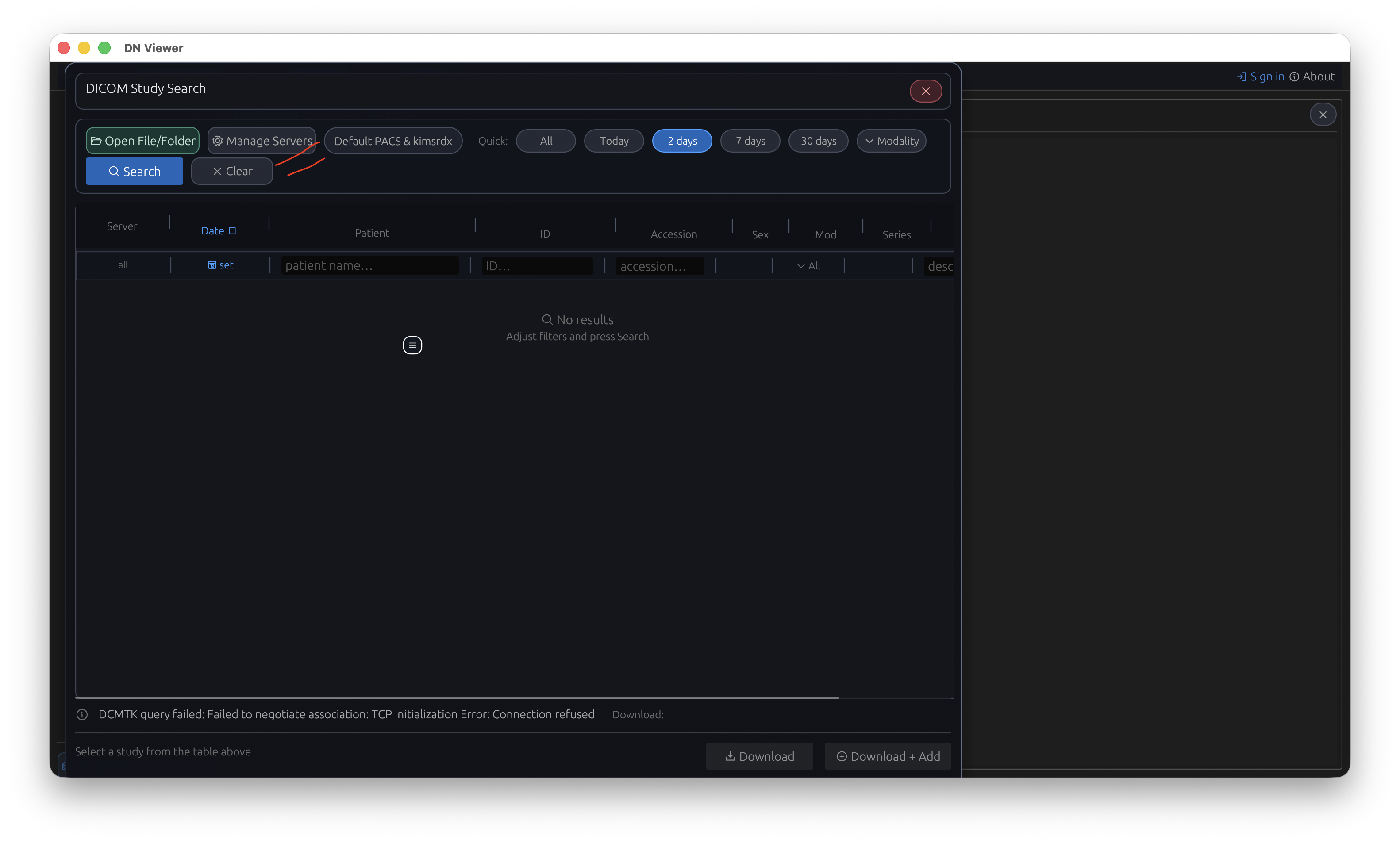
Open DICOM Study Search, then select Manage Servers.
Enter the AE Title from Horos's Listener in Calling AE (this app).
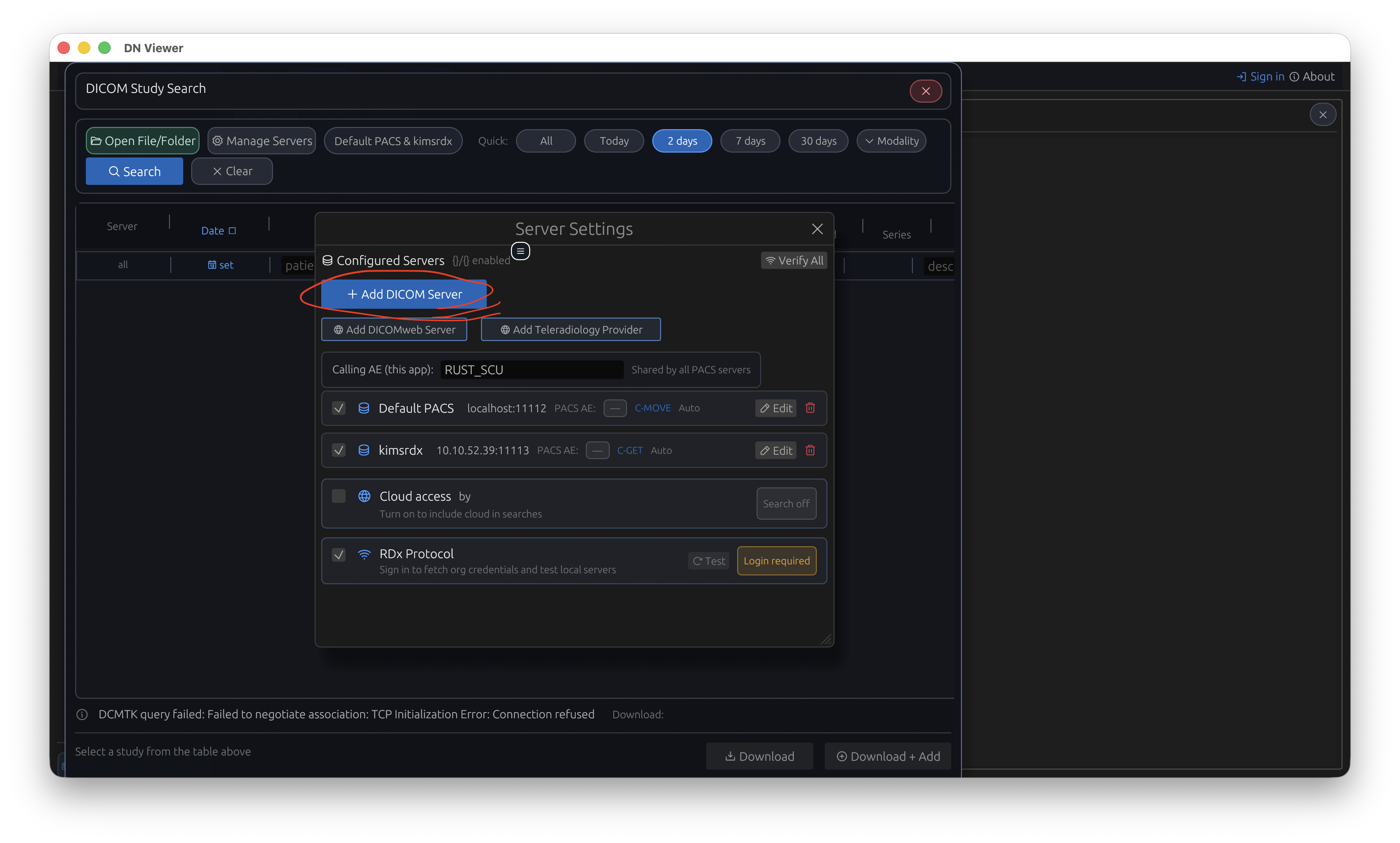
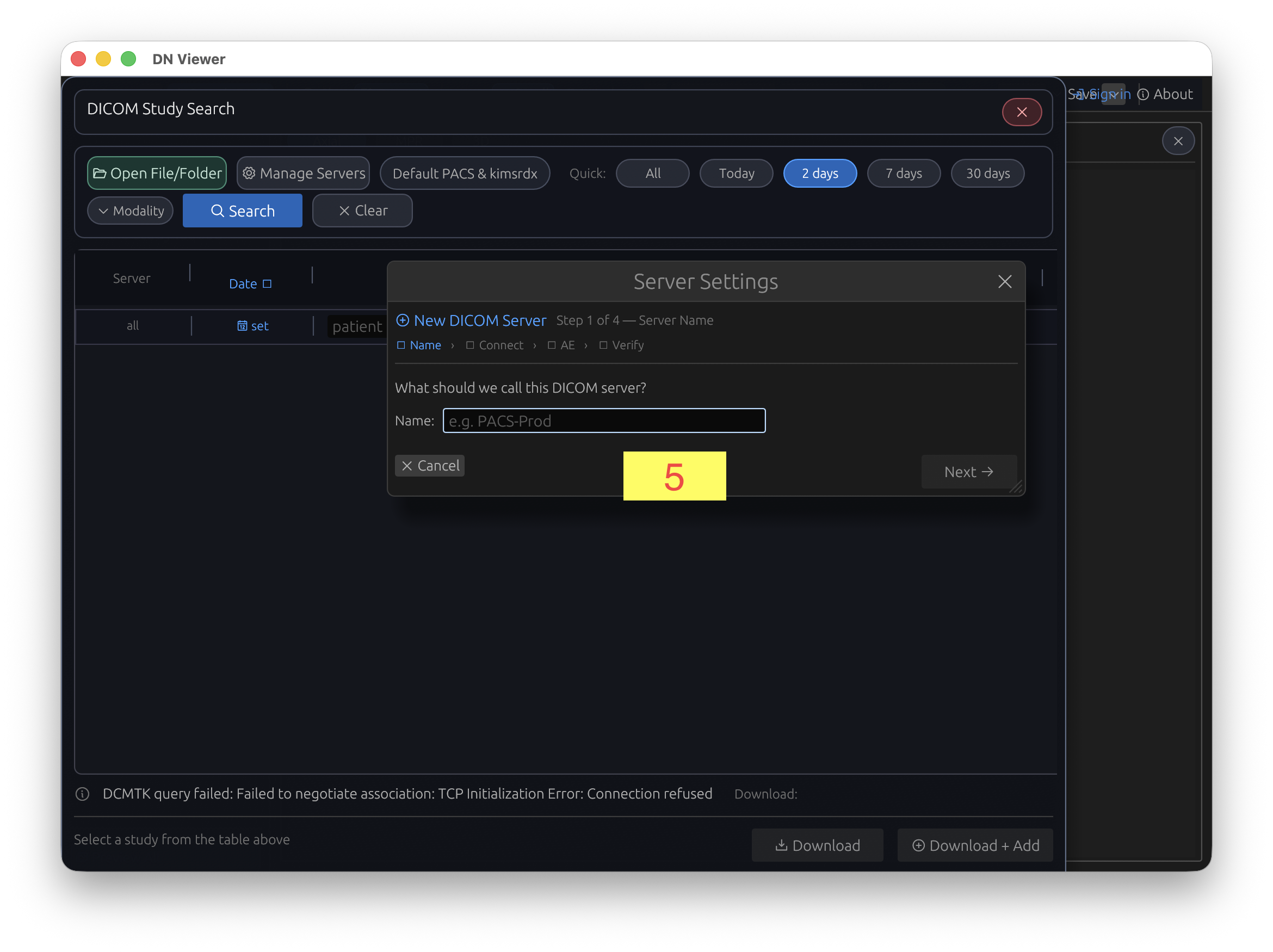
Select Add DICOM Server. Name it after the Name field in Horos's Locations settings, or use another clear label such as Main PACS.
From Horos's Locations settings, enter the Address and Port. Then enter the AETitle in Called AE Title (PACS) and choose the same C-MOVE or C-GET retrieval method.
Keep transfer syntax on Auto initially. For C-MOVE, enter the Port from Horos Preferences → Listener as the C-MOVE listen port. Verify the connection, save the server, then run a short date-range search.
These DN Viewer screens show the fields used during the migration. No Horos screenshots are included on this public guide.
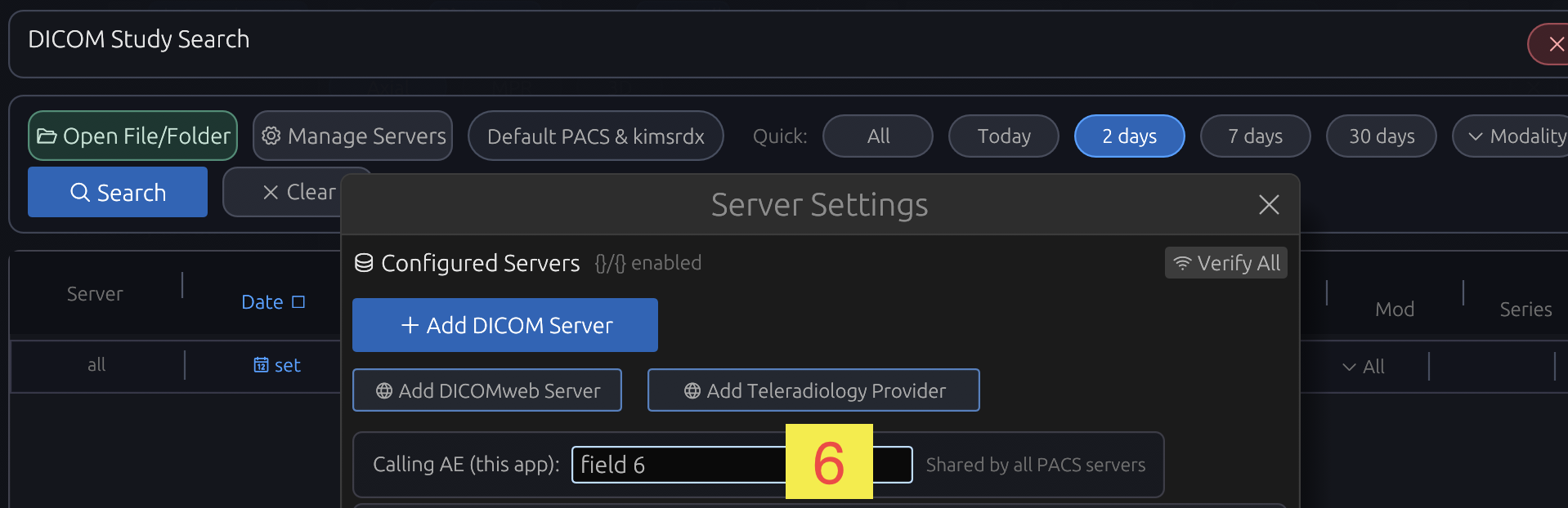
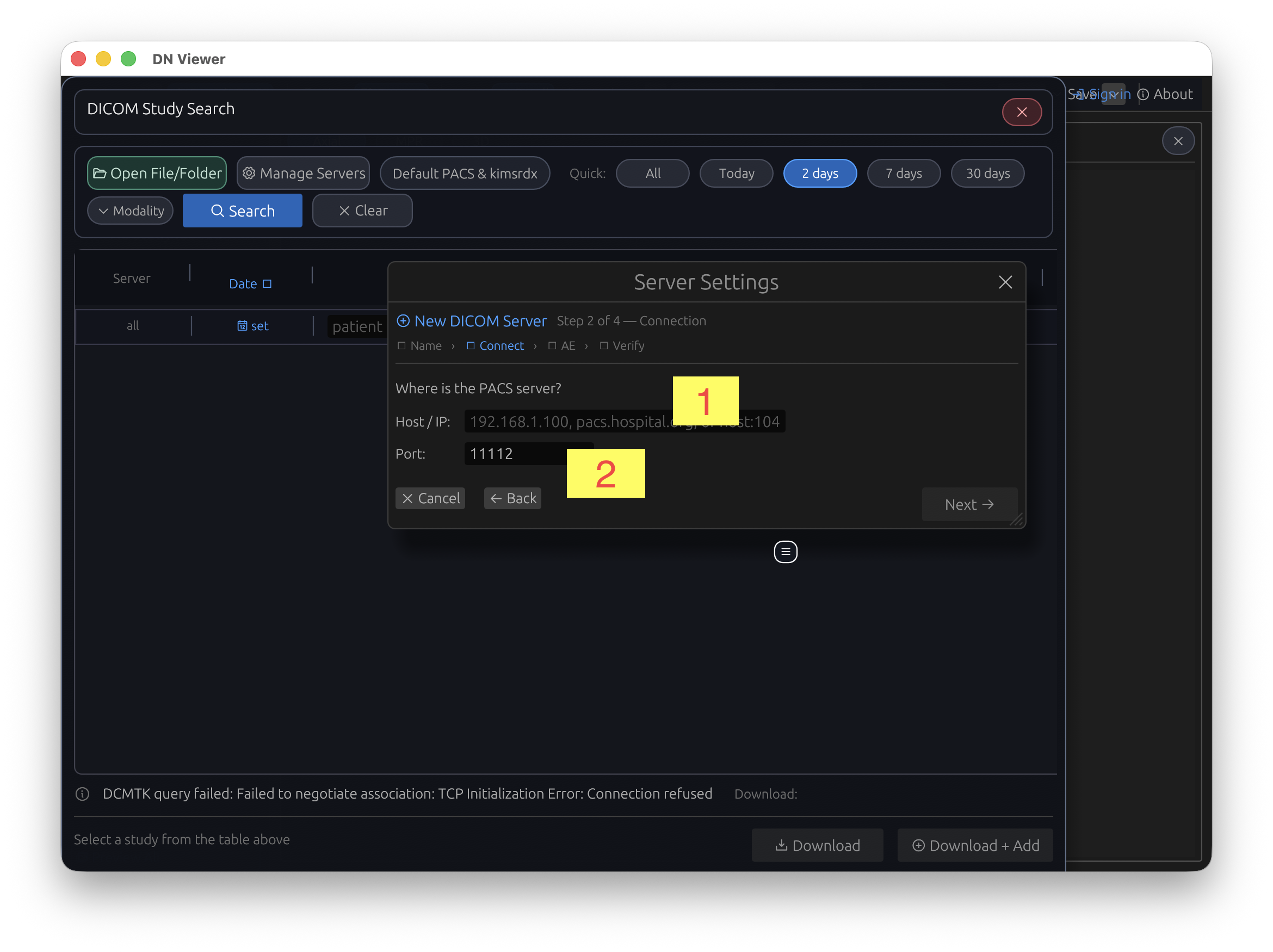
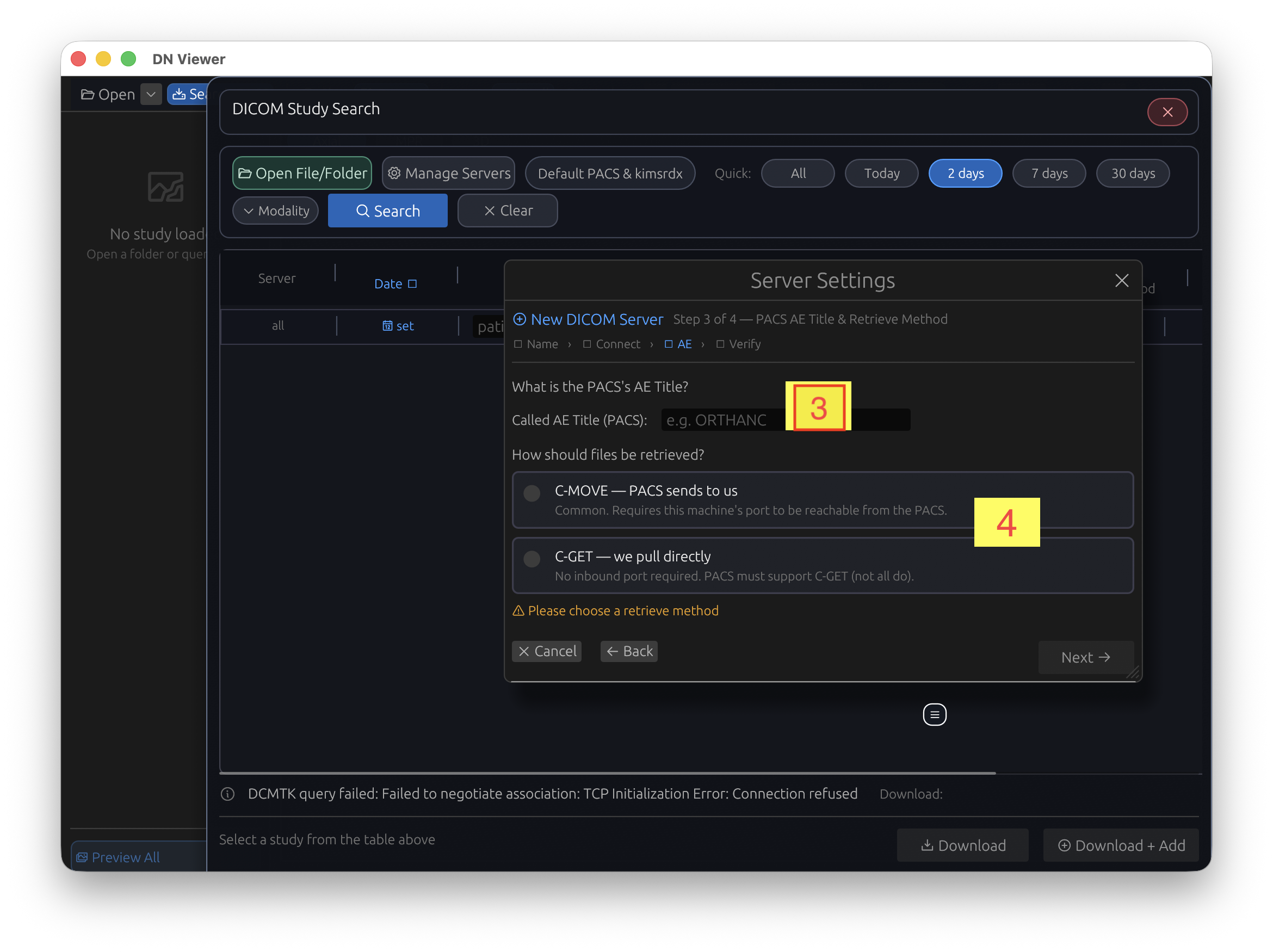
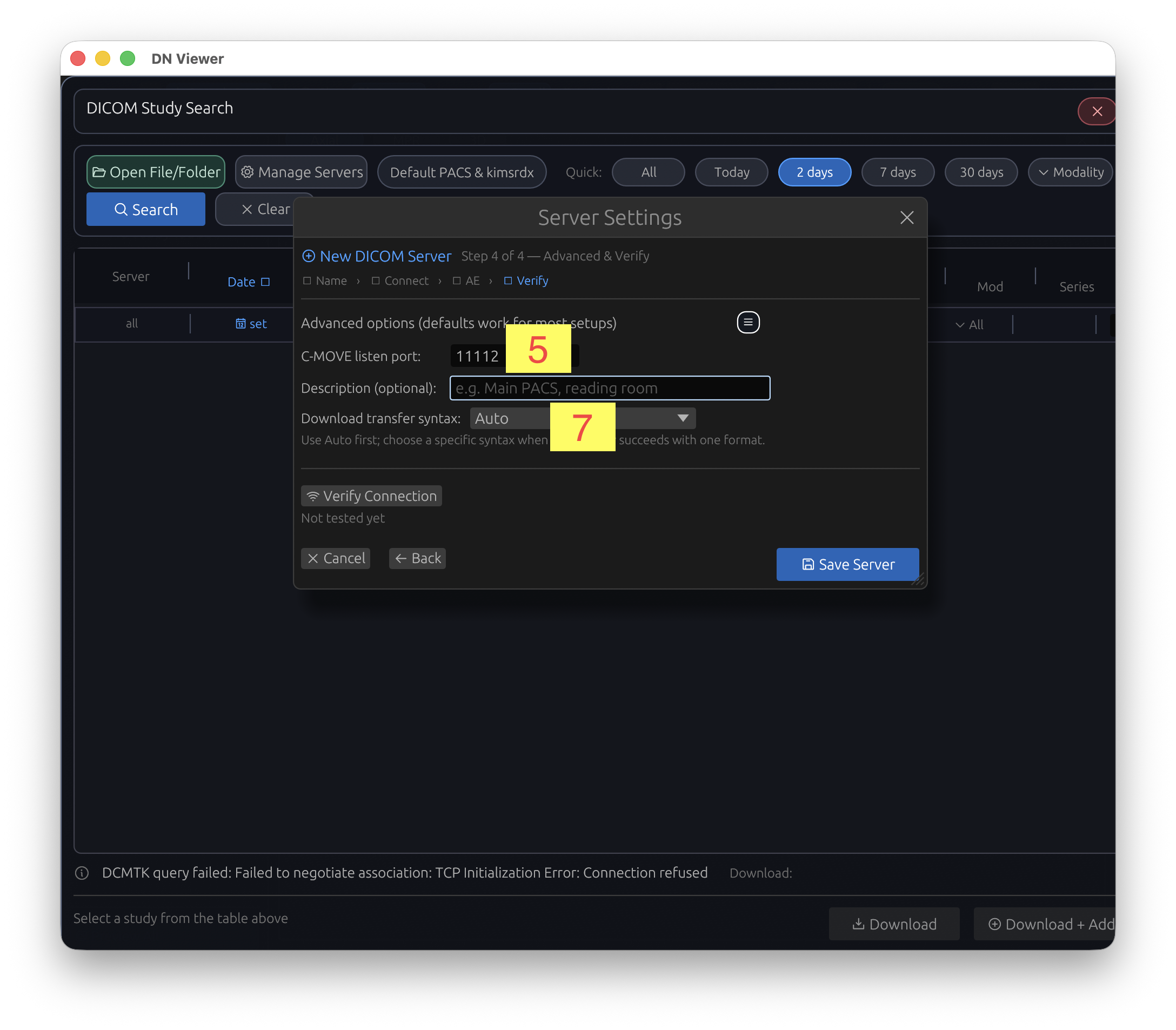
Use the AE Title from Horos Preferences → Listener. Do not copy the AETitle in the Locations row into this field; that row identifies the remote PACS and maps to Called AE Title (PACS).
You can use it as the DN Viewer server name or description, but it is only a label for you. Address, Port, AETitle, retrieve method and Calling AE are the connection values that must be accurate.
Leave DN Viewer on Auto first. Select the same transfer syntax as Horos only when the PACS needs a specific compatible image format.
Download DN Viewer for Mac or Windows, then add your PACS with the values you recorded from Horos.
Download DN Viewer